Wix Analytics
Install Glass Analytics on Wix
#Glass Analytics can be installed on your Wix website using custom code.
Glass Analytics runs alongside other analytics platforms and will not interfere.
How to Install Glass Analytics with Wix
Click 'Settings' to edit your site
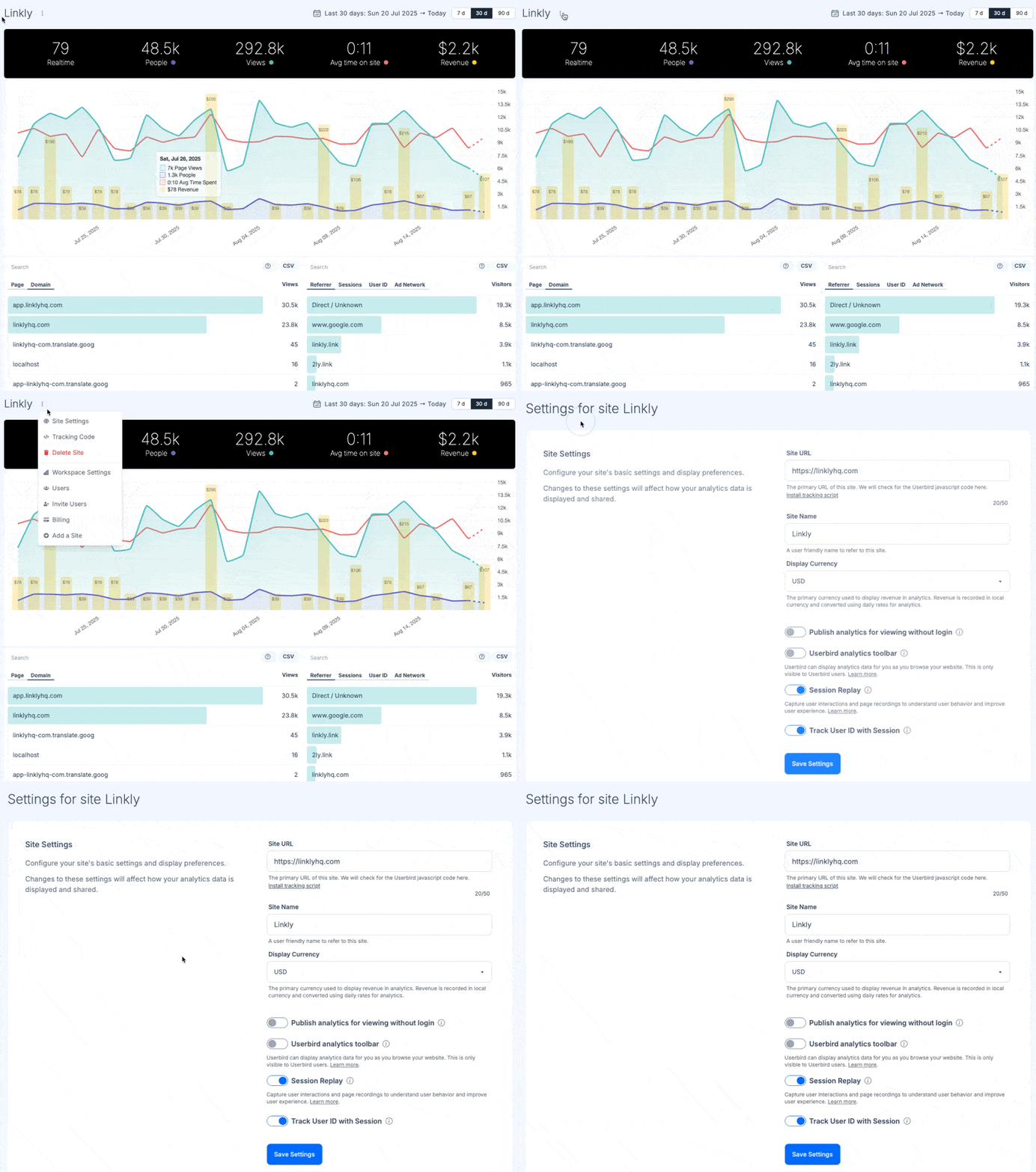
Select 'Tracking Code' and then select 'Wix'
Make sure you select Wix as the platform.
Copy the tracking script from Glass Analytics
This tracking script is bespoke to your site.
Copy the entire script including the opening and closing
<script>tags.In Wix, go to Settings > Tracking & Analytics
From your Wix dashboard, navigate to Settings in the left sidebar.
Then click on Tracking & Analytics under the Marketing & SEO section.
Add the script to 'Custom Code'
Click on + New Tool and select Custom Code.
Paste your Glass Analytics tracking script into the code box.
Set it to load on All Pages and choose Head as the placement.
Click Apply to save your changes.
Verify your script on Glass Analytics
Publish your Wix website to make the changes live.
Visit a page on your website to generate some traffic data.
Return to Glass Analytics and verify that traffic data is flowing in.