Installation with Google Tag Manager
Glass Analytics can be installed with Google Tag Manager.
Glass Analytics runs alongside other analytics platforms and will not interfere.
How to Install Glass Analytics with Google Tag Manager
Click 'Settings' to edit your site
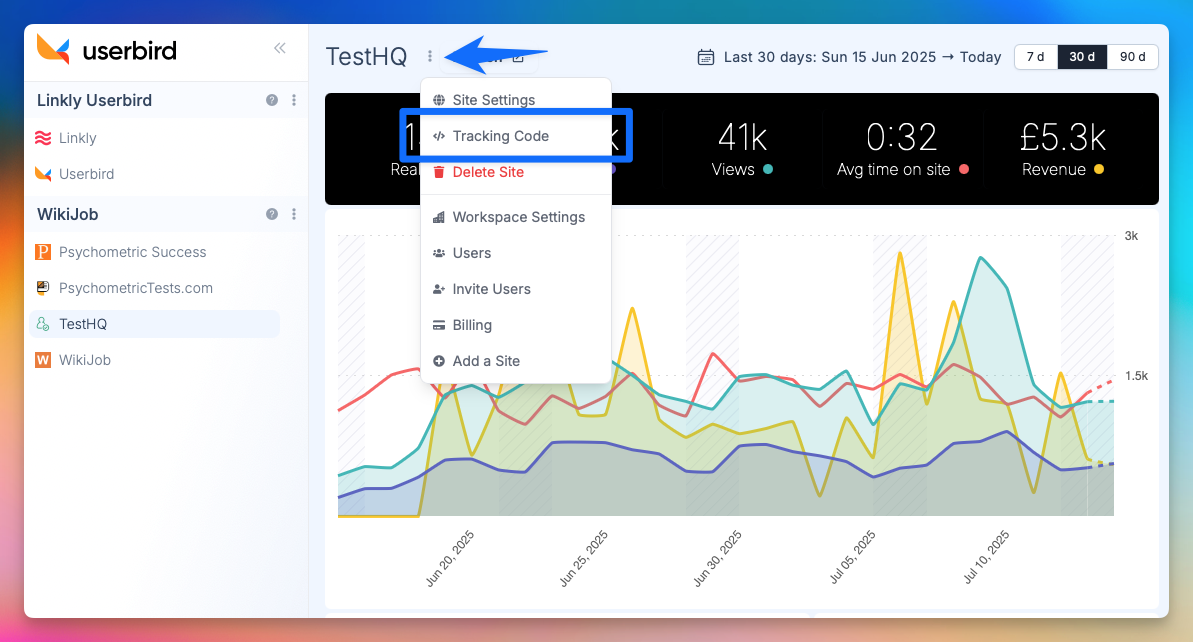
Select 'Tracking Code' and then select 'Google Tag Manager'
Make sure you select Google Tag Manager as the platform.
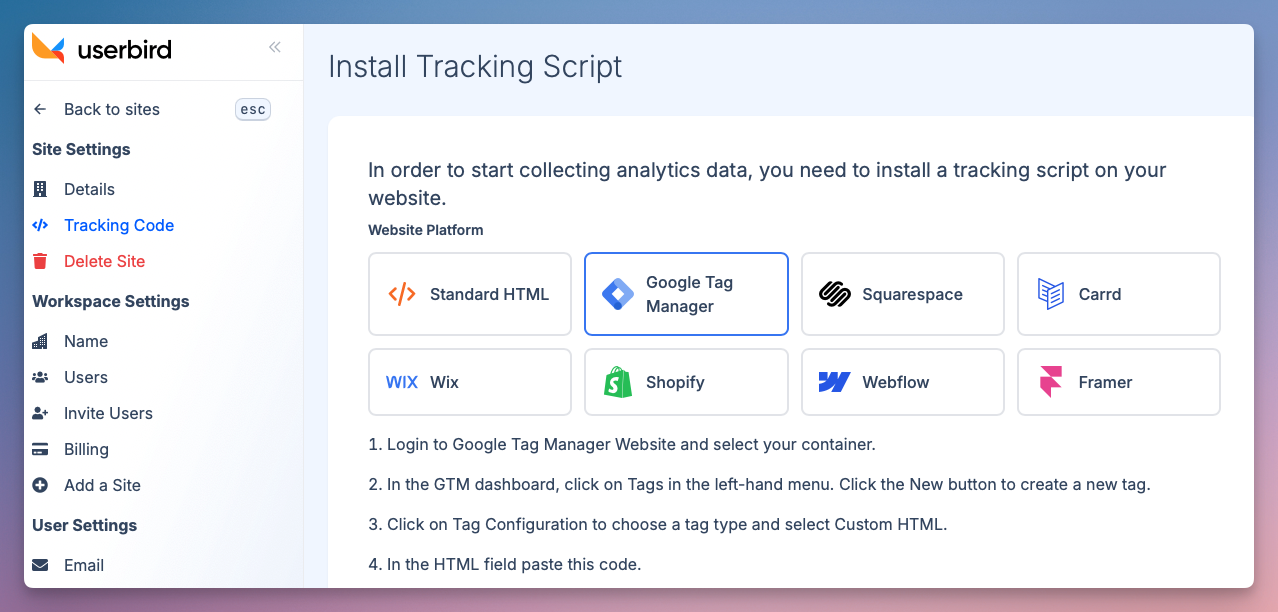
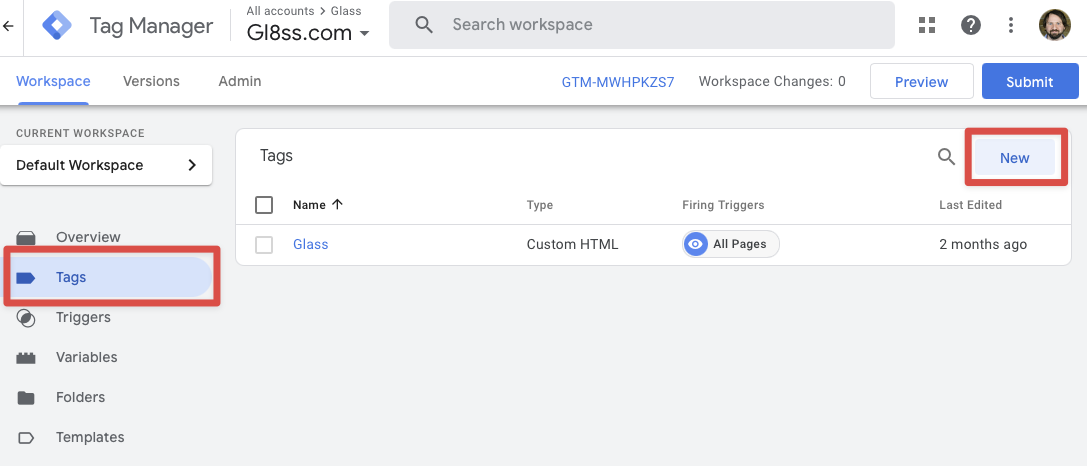
In Google Tag Manager, edit your container
Click on Tags in the left and menu, and then click on New in the top-right corner.
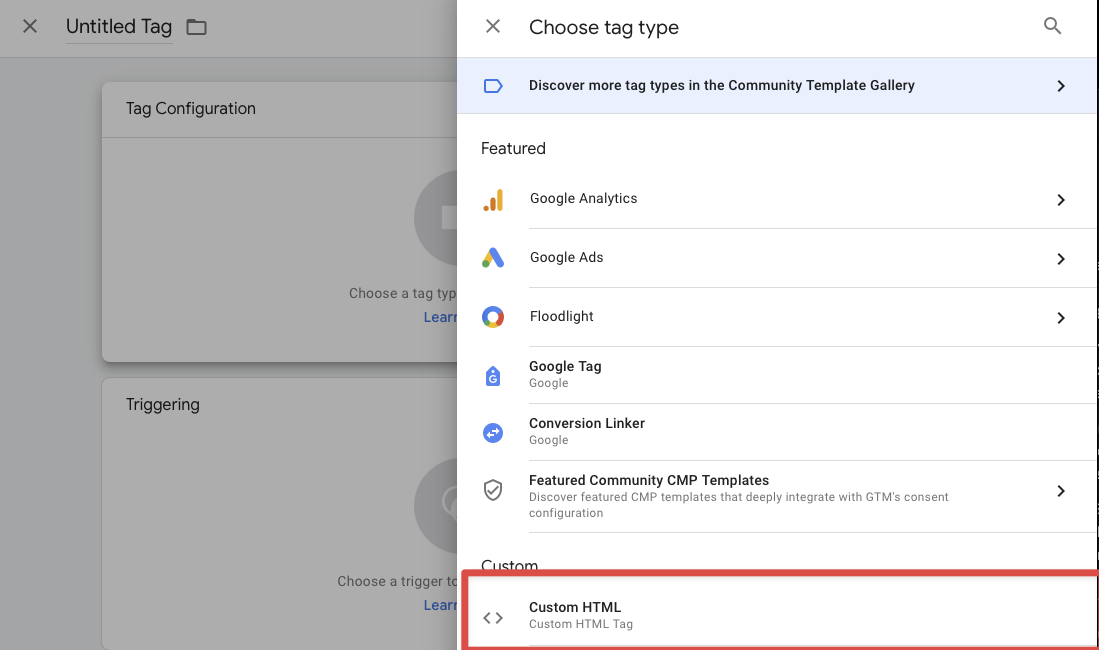
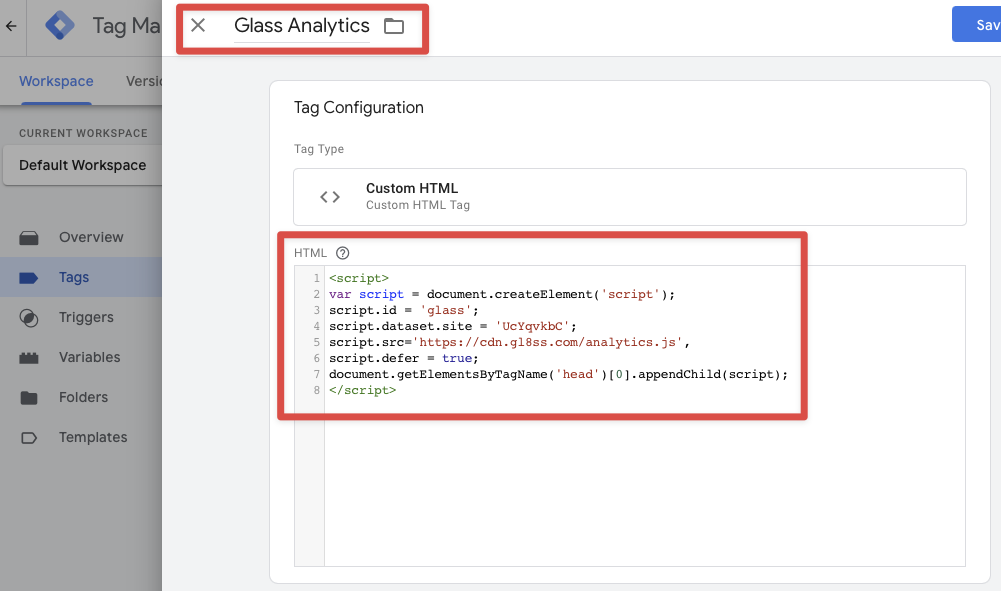
Click inside 'Tag Configuration' and then select 'Custom HTML'
Paste in the tracking script from inside Glass Analytics
This tracking script is bespoke to your site.
Rename the tag 'Glass Analytics'.
Click on Triggering and select All Pages
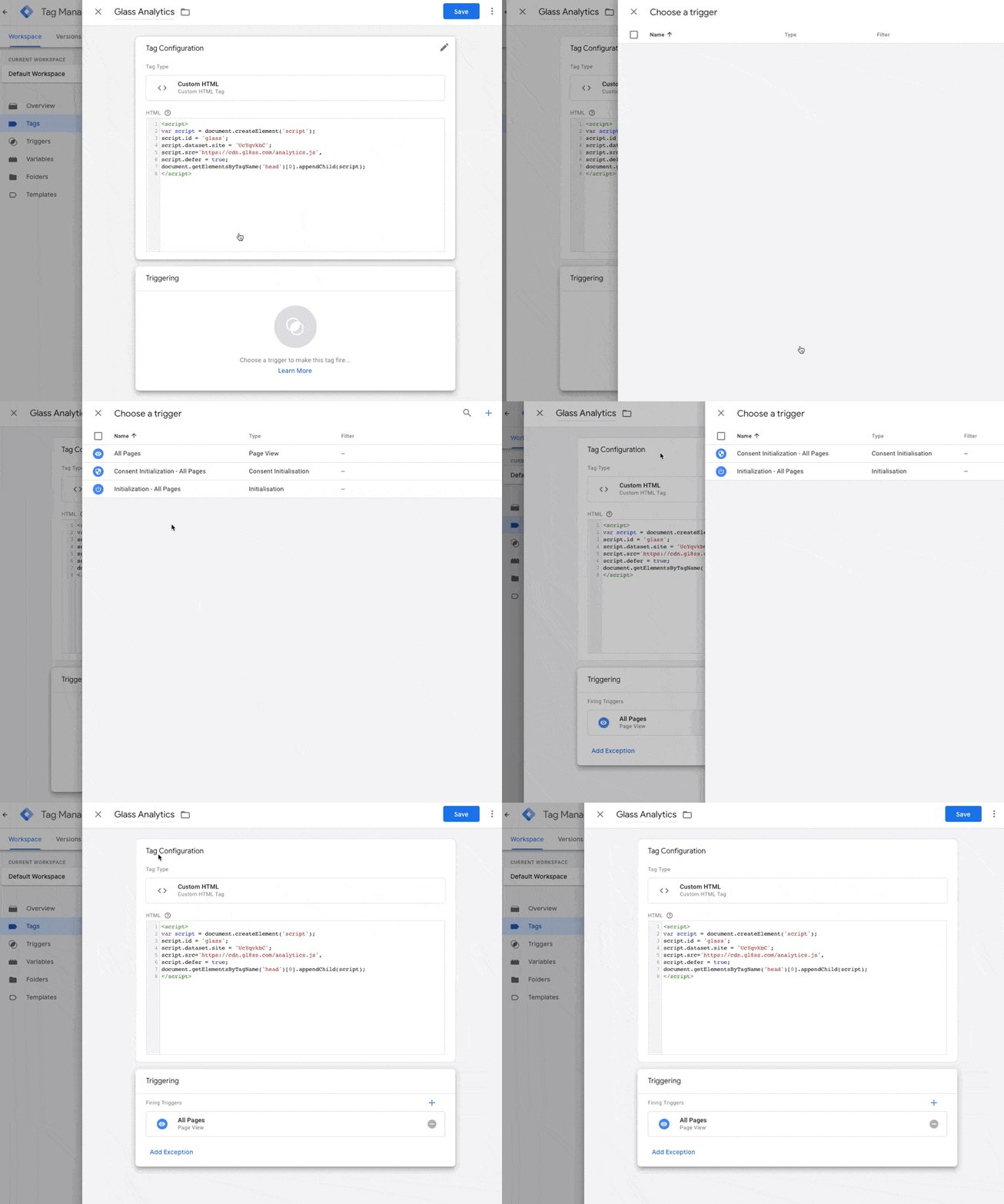
Click Save in the top right hand corner
Click Submit to publish your tag
Verify your script on Glass Analytics
Wait one minute after publishing for Google Tag Manager to make the script live.
Visit a page on your website to generate some traffic data.
Return to Glass Analytics and verify that traffic data is flowing in.