Analytics Toolbar
Glass Analytics can display analytics on your site, as you browse, using the Glass Analytics toolbar.
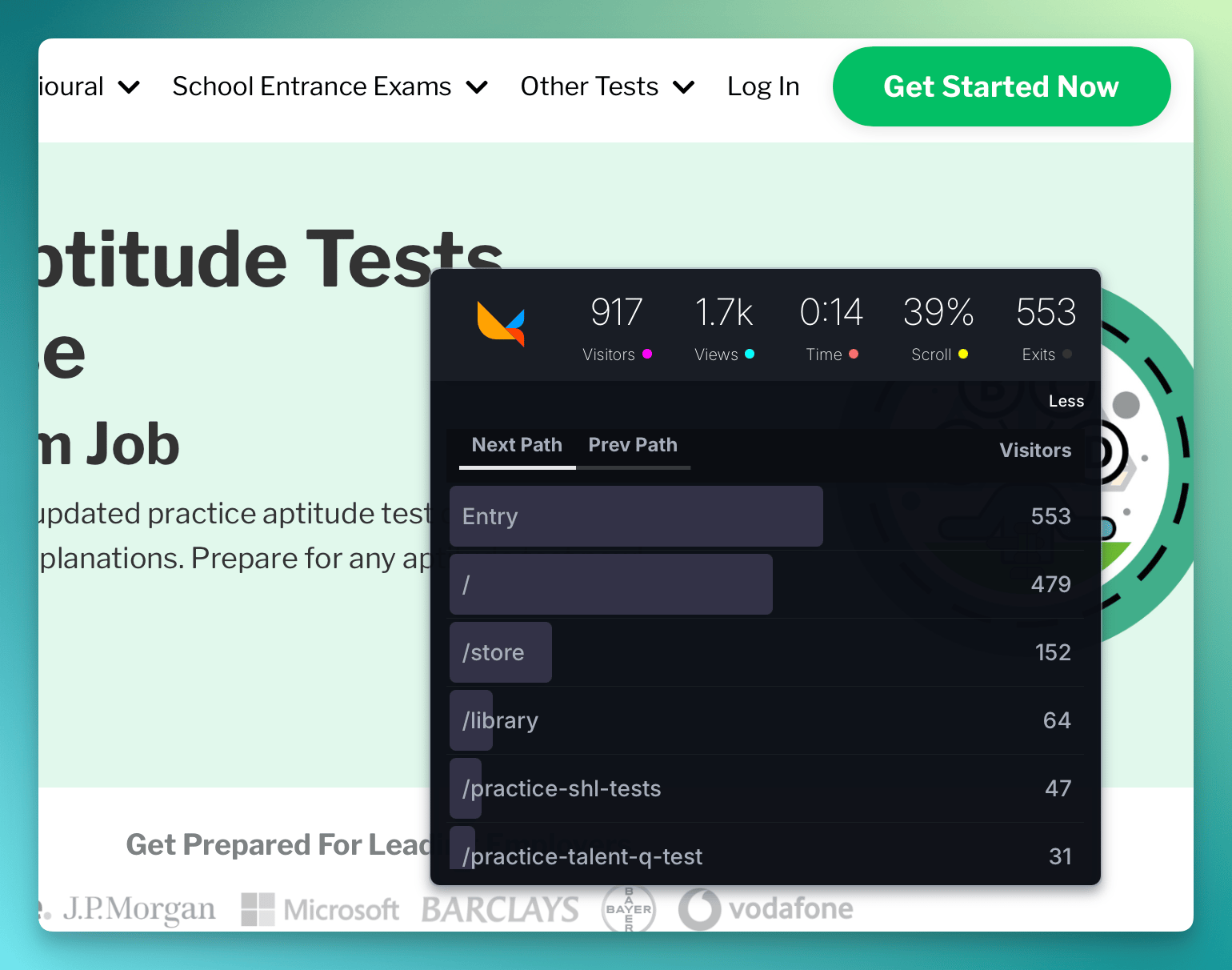
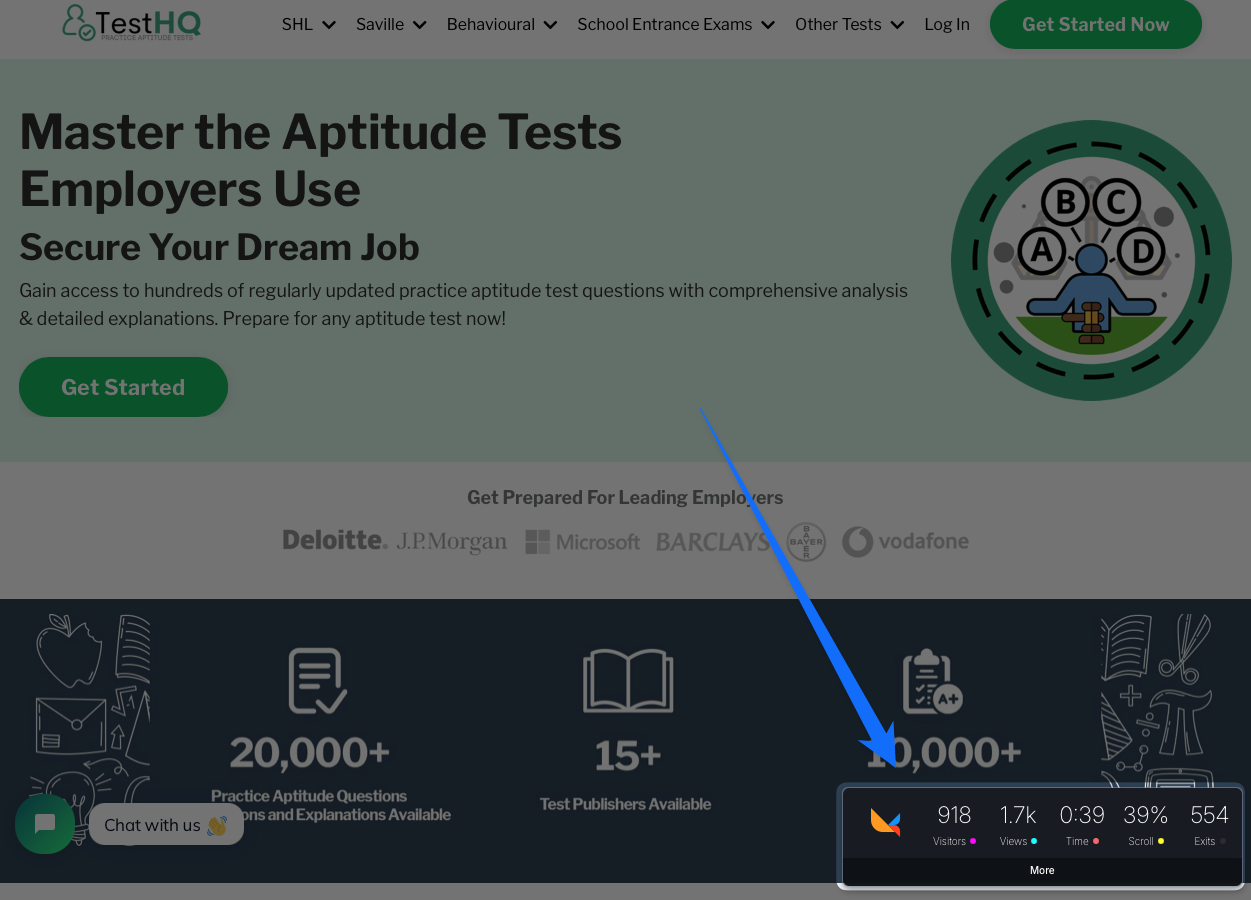
Currently, the toolbar provides:
- Visitors
- Views
- Median time on page
- Median scroll depth
- Exits
- Previous paths (how people got to this page)
- Next paths (where people went next)
- External link clicks
The toolbar automatically updates with the URL of the current page as you navigate around your site.
Users of your website will not be able to see your analytics. They are only visible if you are logged in to Glass Analytics.
How to Enable the Glass Analytics Toolbar
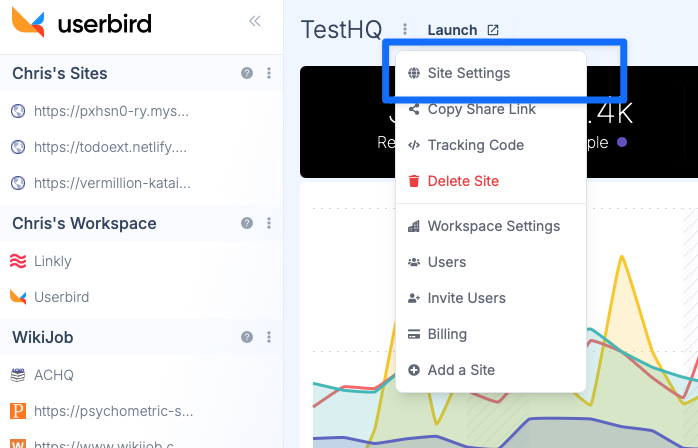
Go to your site settings
You can find your Site Settings by clicking the three dots next to your site name.
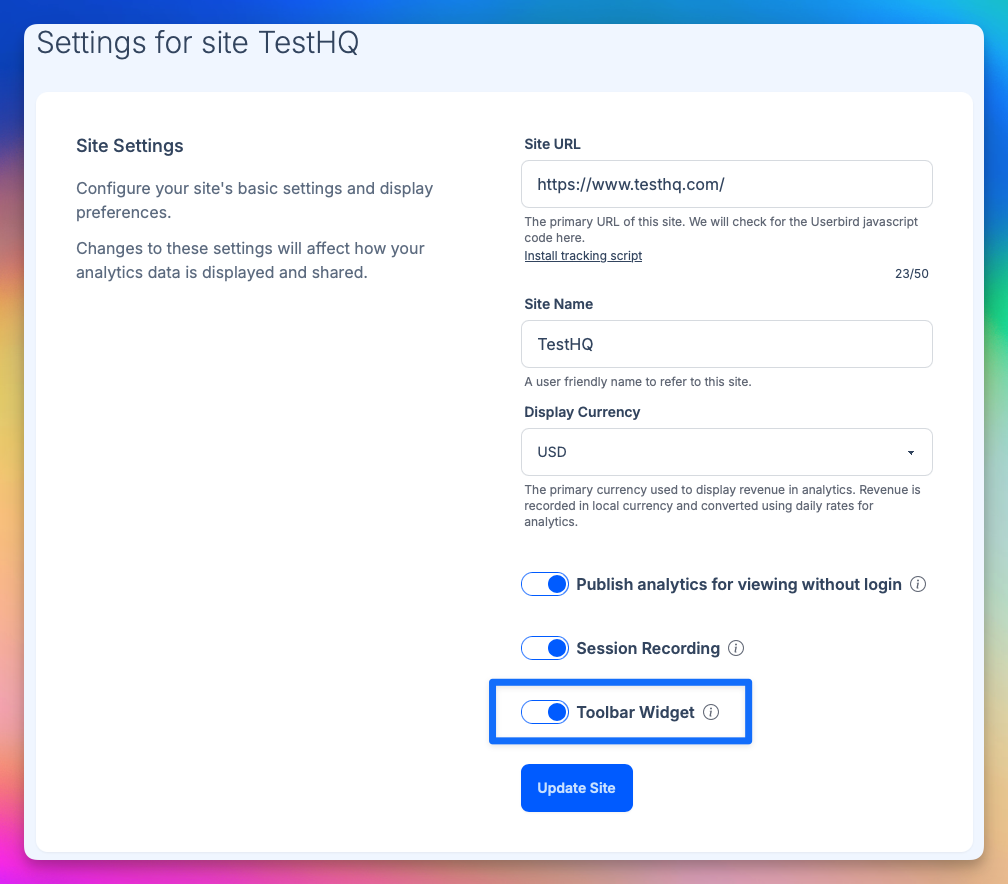
Enable the Toolbar widget
Make sure the 'Toolbar Widget' is enabled and press Update Site.
The toolbar widget will not be loaded unless you are logged into Glass Analytics.
Normal users will not suffer a larger analytics payload if this is enabled.
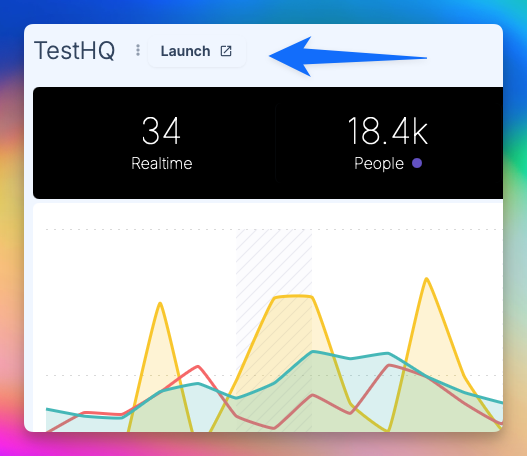
Return to your site, and click 'Launch' from the top
You must launch your site from Glass Analytics for the toolbar to activate, as Glass Analytics passes a login token to your website.
The login token lasts for 30 days.
Glass Analytics toolbar automatically loads on your website
You should see the Glass Analytics toolbar launch in the bottom right corner. You can move the toolbar around as necessary.
Security Considerations
Make sure you trust the other scripts on your website. In order to work, Glass Analytics needs to share your Glass Analytics login token with your site.
Frequently Asked Questions
Can my website visitors see the Glass Analytics toolbar?
No. The toolbar is only visible to Glass Analytics users. It isn't visible to website visitors.
I'm visiting my website, but I don't see the toolbar?
Make sure the toolbar is enabled in Site Settings and you have launched the website from Glass Analytics.
It will not load unless you open the website from the Glass Analytics dashboard at least once.