Stripe Integration
Glass Analytics connects with Stripe in order to show revenue directly in your analytics dashboard.
In order to connect Stripe to Glass Analytics, you need access to your Stripe Dashboard, and the ability to create webhooks.
How to Connect Stripe to your Analytics
Enable Stripe Integration in Glass Analytics
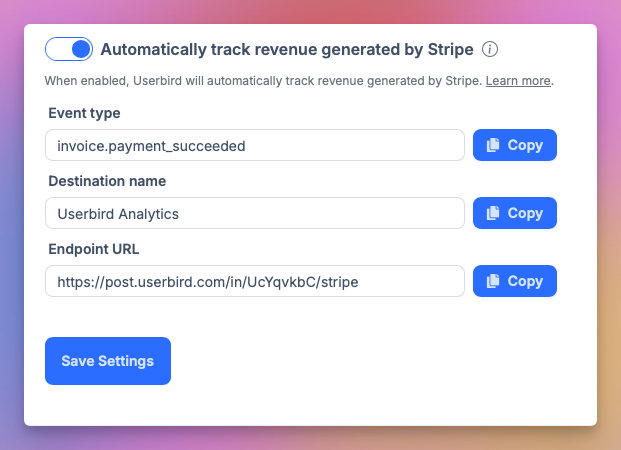
Go to your site settings and click 'Automatically track revenue generated by Stripe'
Login to Stripe's Dashboard
Search for Create a Webhook in the search bar
Copy the unique webhook URL from your site settings and paste it into Stripe.
It'll look like:
https://post.glassanalytics.com/in/{site_id}/stripeSelect invoice.payment_succeeded
Paste your destination name and endpoint URL.
It'll look like:
https://post.glassanalytics.com/in/{site_id}/stripeFinally, press 'Create destiantion'
In the description, type in Glass Analytics.
Add the
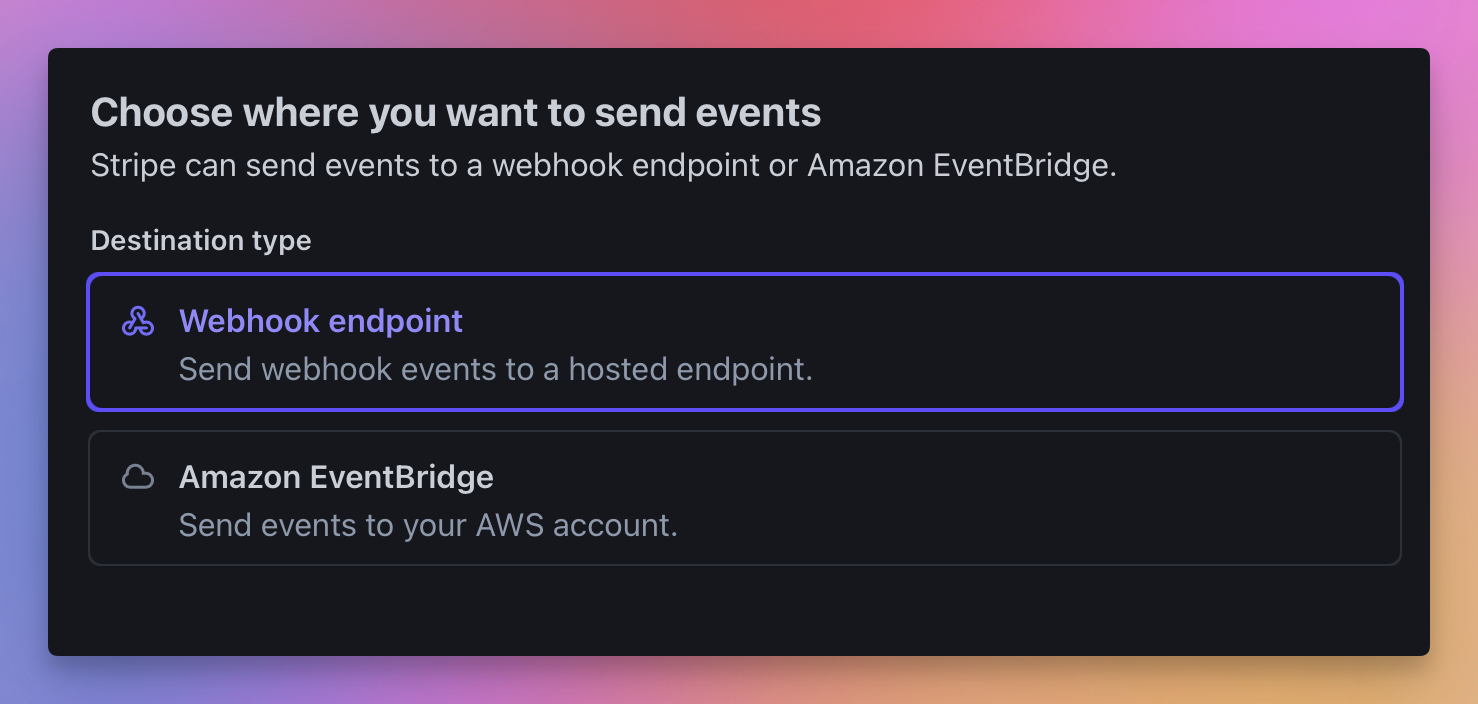
payment_intent.succeededeventSelect 'Webhook Endpoint'
In the web hook URL field, paste your unique Glass Analytics ingest endpoint
It'll look like:
https://post.glassanalytics.com/in/{site_id}/stripeWait for transaction data to arrive into Glass Analytics
Glass Analytics only collects data about transactions after Stripe has been connected.
It does not backfill previous data.
Frequently Asked Questions
Does Glass Analytics sync historical Stripe data?
No. Glass Analytics only syncs data after Stripe's webhook URL was set up.
Is Stripe revenue different from Glass Analytics's client-side e-commerce tracking?
Yes. Glass Analytics manages this data independently.
Does Glass Analytics track subscription revenue?
Yes. Glass Analytics tracks all 'payment succeeded' events through Stripe.
Does Glass Analytics track refunds & credits?
Yes.
These will show up as negative amounts.
How to analyse Stripe revenue data in your Analytics with Glass Analytics
Enable Stripe integration if not done so already
You will need to wait until some transactions have completed.
Click 'Revenue' in the stats bar and select 'Stripe Revenue'
This shows the revenue tracked by the Stripe integration.
See the 'Stripe Revenue' tab below to show revenue per line item.
Negative figures reflect credits and refunds.